Lumor AI Video & Beauty App
- 0.0
- Rating
- 50.00K
- Installs
- Free
- Price
 Analysis by App-foxy
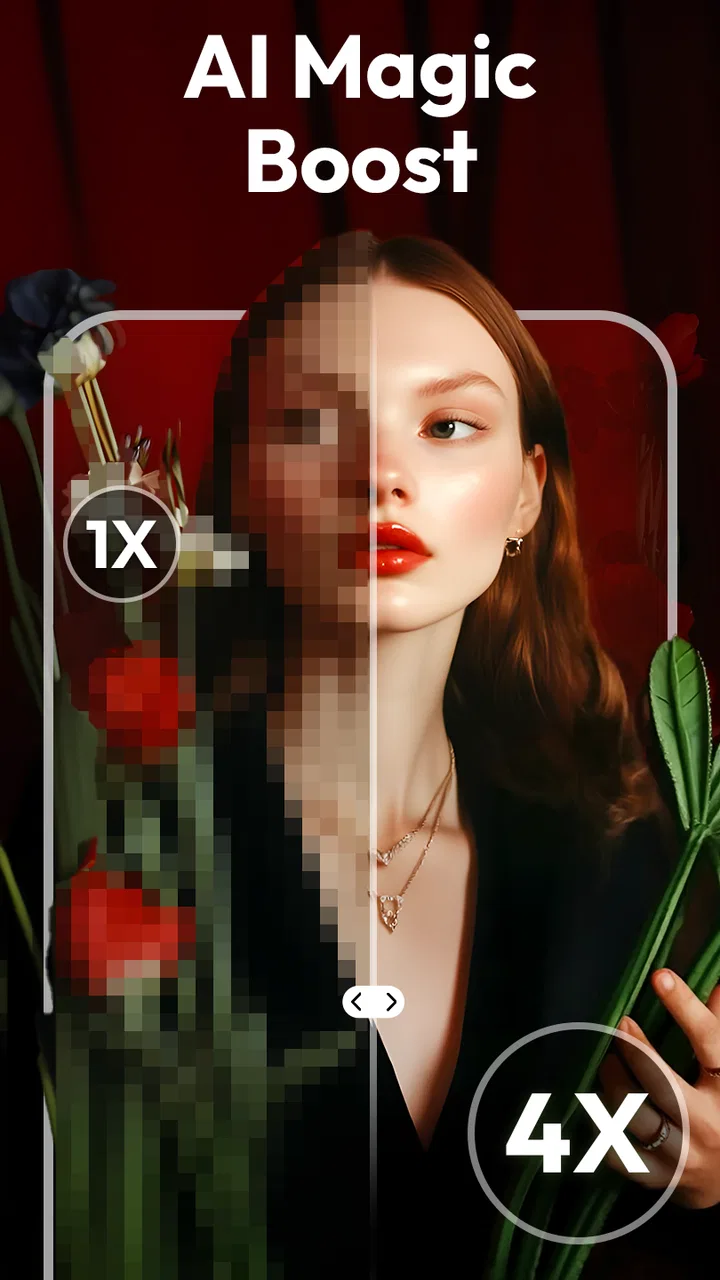
I tried Lumor AI as a beauty-focused photo and video editor, and my first impression was that it aims for quick personal polish rather than the full control of a traditional editing suite. It comes from Playtoon AI and sits in the Beauty category, with tools centered on facial enhancement, smoother-looking skin and makeup effects. That focus makes the app easy to understand: you bring in a portrait or short clip, make a few appearance changes, and decide whether the result still looks like you.
The important distinction is that this is not simply a filter collection. Its identity is built around AI-assisted changes to faces and skin, so the experience is more about reducing editing effort than manually adjusting every detail. I found that appealing when I wanted a presentable image quickly, but it also means the quality of the result depends heavily on the original lighting, camera angle and how subtle I keep the adjustments.
How Lumor AI fits into everyday beauty editing
The app is free to download and use as a starting point, while in-app purchases are listed at $4.99 per item. That makes the initial decision fairly simple: you can explore the basic experience without paying upfront, then decide whether a particular paid item is worthwhile. I would not treat the free entry as proof that every editing option is free, though. The purchase model matters because someone looking for a completely unrestricted editor may find the cost structure less predictable than a one-time paid app.
You May Also Like

 Blood Strike: 2.5 Anniversary
Blood Strike’s Loadouts Turn Every Drop Into a Tactical Gamble
A close look at Blood Strike’s custom loadouts: how fast access to signature weapons reshapes its battle royale rhythm, rewards preparation, and narrows the gap between fights.

 Pandora - Music & Podcasts
Pandora’s Music Is Easy to Start, but Harder to Recover
Pandora’s strength is its low-effort path from a seed to a station. Its weak spot is how much confidence it asks you to place in connection, setup, and quiet recovery.

 8 Ball Pool
 Is Built on Rivalries, Rematches, and Routine
A close look at the rivalries, rematches, shared routines, and unanswered safety questions that turn a quick pool match into a persistent mobile community.

 Samsung Music
’s Quiet Strength Is Playing What You Already Own
Its reach comes less from spectacle than from dependable access to a personal library. That simplicity is both the app’s strongest retention engine and its ceiling.

 AccuWeather: Weather Radar
AccuWeather Review: A Quick, Clear Forecast for Everyday Decisions
For everyday plans, the best forecast is the one you can understand quickly. AccuWeather makes rain timing, radar, and local conditions easy to act on, with a few trade-offs.

 Hill Climb Racing
Why Hill Climb Racing Still Turns Crashes Into One More Run
A tiny car, a bumpy hill and one more upgrade: Hill Climb Racing keeps resurfacing because its simple chaos makes every near-miss feel personal.
More From Our News Desk
View All News


The age rating is Everyone, which suits the general-purpose nature of portrait and beauty editing. It is available for devices running Android 7.0 or later. The current version is 0.1.0, so I approached it as an early product rather than a mature editor with years of refinement behind it. Playtoon AI has already reached over 50 thousand installs, but the relatively early version number is still a useful reminder to keep expectations realistic.
In practical terms, I see the free access as most valuable for testing the look of the edits before spending anything. A beauty app can sound impressive in a description and still produce results that feel too artificial on a particular face. Being able to try the workflow first is therefore more useful than a long feature list. I would begin with an ordinary photo, not a carefully staged selfie, because that gives a better idea of how the processing handles real lighting and uneven skin tone.
The editing experience is built for quick decisions
What I like about this kind of focused app is the short path from image to result. Instead of opening a broad editor with dozens of unrelated controls, I can concentrate on the face, skin and makeup. That is helpful when I need a profile picture, a social post or a family image cleaned up without turning the task into a small design project.
My advice is to make one change at a time and pause before adding another. Skin smoothing can make a portrait look cleaner, but combining it with strong makeup and additional facial adjustments can quickly remove natural texture. The most convincing result is usually the one where a viewer notices that the lighting looks kinder, not that the face has been rebuilt.
The same principle matters more with video. A still image gives the editor one fixed frame, while a clip contains movement, changing light and different facial angles. I would preview the entire sequence before sharing it, especially if the face turns or the subject moves closer to the camera. A result that looks excellent on the opening frame may feel less consistent later in the clip.
One useful workflow is to keep an untouched copy of the original, make a restrained beauty version, and then compare the two after taking a short break. Looking at the edited image immediately can make stronger changes seem normal. Returning to it later helps me judge whether the effect improves the portrait or merely makes it different.
Where the AI approach helps most
The strongest use case is speed. If I have a portrait with mild unevenness, tired-looking skin or makeup that does not read well on camera, an AI-oriented tool can be more convenient than manually brushing over every area. That convenience is especially valuable for people who do not enjoy learning curves and only want a clean result for a specific occasion.
It can also help when the source image is almost good enough but not quite ready to publish. For example, imagine taking a quick selfie before meeting friends. The framing works, but the indoor light emphasizes small imperfections and the face looks flatter than it did in person. I would use a light smoothing pass, add a restrained makeup treatment if needed, and stop before the image loses its original expression.
For video, the attraction is similar but the judgment required is greater. A short social clip can benefit from a more even appearance without the user having to edit individual frames. I would use it for casual personal content rather than footage where exact skin tone, texture or professional color accuracy is important.
The real strength is controlled convenience, not unlimited correction. Lumor AI makes the most sense when I want a fast improvement and am willing to review the result carefully. It is less convincing as a replacement for detailed retouching, color grading or professional makeup simulation.
What it does better than ordinary alternatives
Compared with a standard camera app, Lumor AI is more directly aimed at finishing the image after capture. A camera app may offer a flattering live filter, but it is often designed around the moment of taking the picture. Here, the appeal is the ability to work with an existing photo or video and focus the edit on beauty-related changes.
Compared with a full manual editor, it should feel less demanding for a beginner. Traditional editors are better when I need exact control over masks, exposure, selective color or individual facial details. They also make it easier to preserve texture because I decide precisely where each adjustment goes. The trade-off is time: manual work can be slow, particularly when I am editing several images.
Compared with a conventional makeup filter, the AI emphasis suggests a more complete workflow around the face rather than a single decorative overlay. That can be useful for a natural-looking portrait, but it also makes restraint more important. Decorative filters can be obviously playful; beauty correction is judged more harshly because viewers expect the person to remain recognizable.
I would choose a manual editor over this app for product photography, professional headshots, detailed color correction or any project where I need repeatable settings across many images. I would choose Lumor AI when the priority is reducing effort on a personal portrait or short clip and I do not want to spend time learning a complex interface.
Important trade-offs before paying
The first trade-off is the purchase model. The app is free to access initially, but individual in-app purchases cost $4.99 each. That can be reasonable if one purchase gives me a tool I will use repeatedly, yet it becomes harder to justify if I only need a single casual edit. Before buying, I would test the free experience and decide whether the improvement is visible enough to matter in the final image.
I would also avoid assuming that a paid item automatically produces a professional result. Payment can unlock an editing option, but it cannot fix poor composition, harsh lighting or a blurry source. The best value comes when the original photo already has a clear face, usable exposure and enough detail for the effect to work with.
The second trade-off is natural texture. Skin smoothing is attractive because it can reduce distractions, but too much of it makes the face look flat. This is not a problem unique to Lumor AI, although an AI-assisted workflow can make strong changes feel effortless. I recommend lowering the intensity as soon as the skin begins to look uniformly painted, even if the first preview seems glamorous.
The third is consistency in motion. A photo gives instant feedback, while a video asks me to judge how the appearance holds up from frame to frame. I would not publish a clip after checking only its thumbnail. Watch it at normal speed, look at transitions in lighting, and check whether makeup or smoothing appears to shift unnaturally during movement.
The early version is another consideration. Version 0.1.0 tells me that the app is at an early stage of its development. That does not make it unusable, but it does make me more cautious about relying on it for an important one-time project. For an event portrait or a professional deadline, I would keep a second editing method available rather than depending on one young app.
Small workflow choices that improve the result
First, choose the clearest source image available instead of trying to rescue a dark or heavily compressed picture. AI enhancement is not magic; it can make an image look polished, but it cannot reliably recreate detail that the camera never captured. Natural window light or soft outdoor shade is a better starting point than a bright overhead lamp.
Second, edit for the destination. A face that looks balanced on a phone may appear overly smooth when viewed larger. I would check the finished image at the size where people will actually see it, then reduce the effect if the skin no longer has believable variation.
Third, use makeup effects to support the lighting rather than fight it. If the original image is warm, a strong additional color treatment may push the face too far. A lighter adjustment can preserve the mood of the photo and still make the features read more clearly.
For repeated portraits, I would create a simple personal rule: use similar source lighting, apply the same restrained approach, and compare several finished images together. This prevents one image from looking natural while the next looks heavily processed. The app may save time on each edit, but consistency still depends on my own review.
Who will get the most value
Lumor AI is a good fit for casual creators, students, families and social media users who want quick beauty edits without learning a large editing program. It is also suitable for someone who prefers to start free and only pay when a particular option proves useful. The Everyone rating and Android compatibility from version 7.0 onward make it accessible to many everyday users with older supported devices.
I can also see value for people who take frequent video selfies but do not want to edit frame by frame. The important condition is that they are comfortable checking the whole clip and accepting a polished, beauty-oriented look rather than demanding exact professional retouching.
On the other hand, I would skip it if my main goal is advanced portrait photography, precise skin-color preservation, batch processing or detailed control over every adjustment. A professional editor is a better choice when repeatability and fine manual correction matter more than speed. I would also skip a paid purchase if I only need one minor correction and the free tools already produce an acceptable result.
My recommendation after weighing the cost
My verdict is cautiously positive. Lumor AI has a clear purpose, and that clarity is its main advantage: it targets face beauty, skin smoothing, makeup and related photo or video improvements instead of trying to be every kind of editor at once. For a quick portrait or casual clip, that focus can save time and produce a more presentable result with less effort than a traditional manual workflow.
Still, I would treat the app as a convenient personal editor, not a professional finishing tool. The $4.99 per-item purchase price deserves a test-first approach, and the early version means I would keep the original files and avoid depending on it for an irreplaceable project. The most satisfying results will come from subtle edits, good source lighting and a full preview before sharing.
If you want fast beauty adjustments for everyday photos and videos, downloading the free app is reasonable. Try it on a few ordinary images, compare the result with the original, and pay only if the specific improvement justifies the individual purchase. If you need detailed control, consistent production work or completely natural retouching, I would choose a more established manual editor instead. For everyone in between, Lumor AI is worth testing, provided you judge the finished face rather than the strength of the effect.
FAQs for Lumor AI Video & Beauty App
01What features does Lumor AI Video & Beauty App offer?
Lumor AI Video & Beauty App is packed with features designed to enhance your video and photo editing experience. It includes AI-powered filters, beautification tools, video trimming, and background music integration. Users can also apply real-time effects and share their creations directly to social media platforms. The intuitive interface makes editing straightforward, even for beginners.
02Is Lumor AI Video & Beauty App free to use?
The app offers a freemium model. While you can access basic editing tools and some filters for free, there are premium features available through in-app purchases or a subscription plan. This includes advanced effects, high-resolution exports, and an ad-free experience. It's advisable to review the pricing details within the app to make an informed decision.
03What are the system requirements for Lumor AI Video & Beauty App?
Lumor AI Video & Beauty App is compatible with most modern Android and iOS devices. However, for optimal performance, it's recommended to have a device running Android 8.0 or later, or iOS 12.0 or later. Ensure your device has sufficient storage and processing power to handle video edits smoothly, especially when working with high-resolution files.
04How user-friendly is Lumor AI Video & Beauty App for beginners?
The app is designed with a user-friendly interface that simplifies the editing process. Beginners will find the guided tutorials and tooltips helpful. The drag-and-drop features, along with preset templates, allow users to create professional-looking edits without extensive editing knowledge. Feedback from users highlights its ease of use as a significant advantage.
05Can I share my edited videos directly from Lumor AI Video & Beauty App?
Yes, the app supports direct sharing to various social media platforms like Instagram, Facebook, and TikTok. After editing, users can choose their desired platform and share their creations with followers instantly. The app also allows saving edits in different formats and resolutions, making it versatile for different sharing needs.
Pros
- Intuitive user interface for easy navigation.
- Wide range of editing tools available.
- High-quality output for videos and images.
- Fast processing speeds for quick edits.
- Regular updates with new features.
Cons
- Some features require in-app purchases.
- Occasional bugs during video rendering.
- Limited support for older devices.
- Heavy on battery usage during operation.
- Requires stable internet for cloud features.

Lumor AI Video & Beauty App
Gallery